Milltina
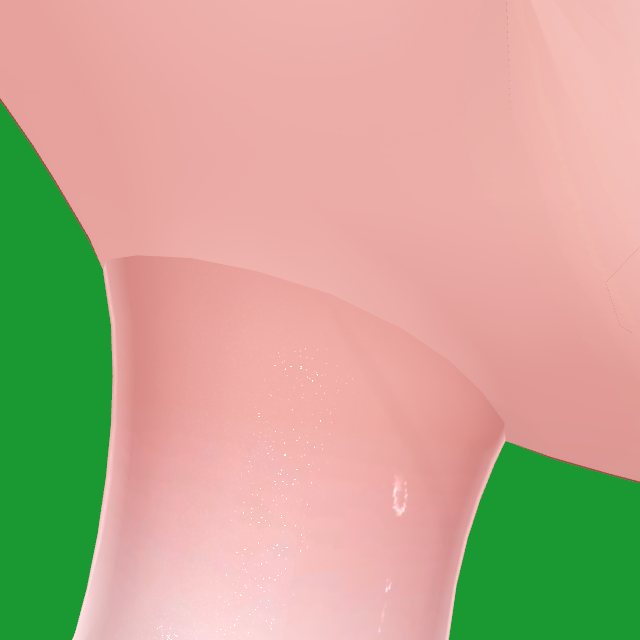
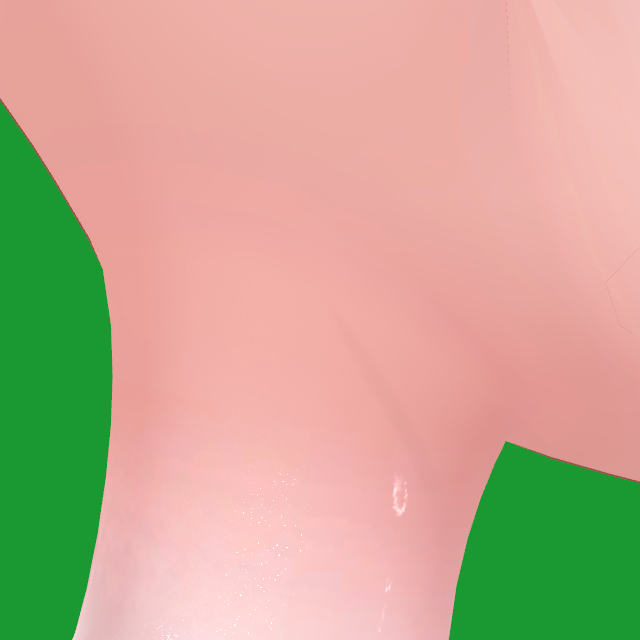 Before修正前
With CON(NECK)TCON(NECK)T 使用後
Before修正前
With CON(NECK)TCON(NECK)T 使用後
On avatars where the head and body are separate meshes, you can often see a line at the neck. CON(NECK)T evens out the color, the shading and small gaps where the head and body meet.
頭と体が別メッシュのアバターは、首に継ぎ目の線が出てしまいがちです。 CON(NECK)T は、首まわりの色・陰影・小さなすき間をそろえて、この線を目立たなくするツールです。
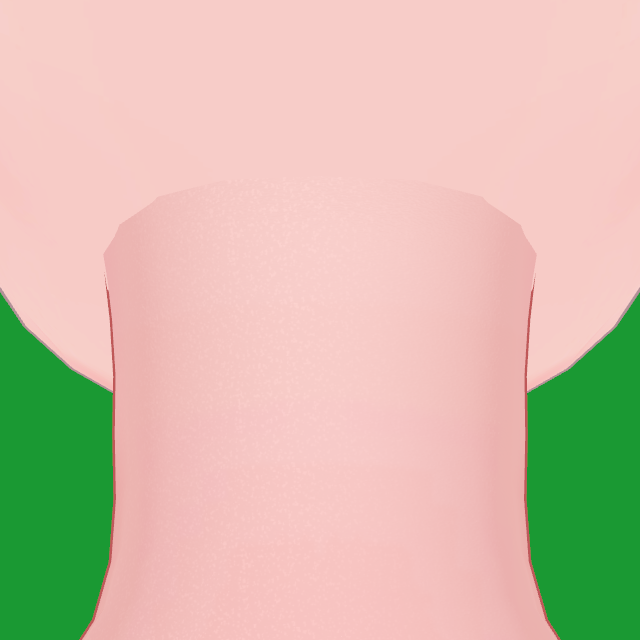
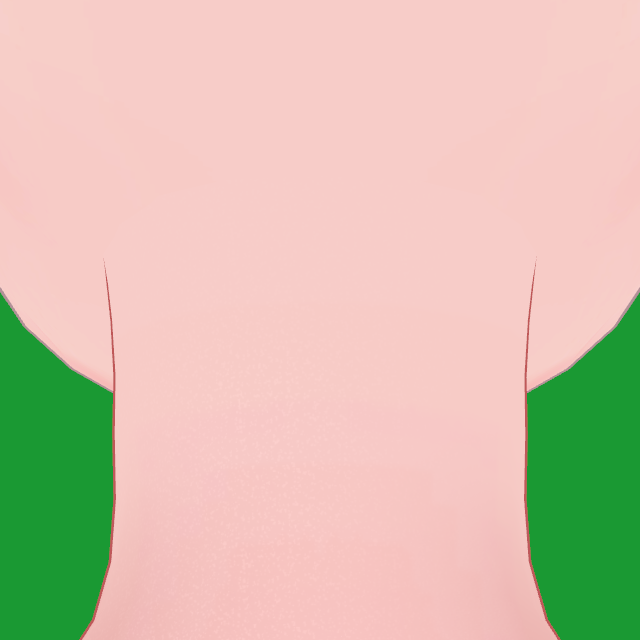 Before修正前
With CON(NECK)TCON(NECK)T 使用後
Before修正前
With CON(NECK)TCON(NECK)T 使用後
SELESTIA. Drag the handle to compare. These are test pictures of the skin only; green is empty background. SELESTIA での比較です。真ん中のつまみを左右にドラッグして見比べてみてください。 ※肌だけを表示したテスト画像です。緑色の部分は背景です。
This is a beta. Please don't share or re-upload the package, and back up your project before testing. これはベータ版です。パッケージの共有・再配布はご遠慮ください。テストの前に、プロジェクトのバックアップを必ず取っておいてください。
Three more avatars. Switch between the side and the back, and drag to compare. ほかの3体でも比べてみました。「横」「後ろ」で向きを切り替えられます。
Before修正前
With CON(NECK)TCON(NECK)T 使用後
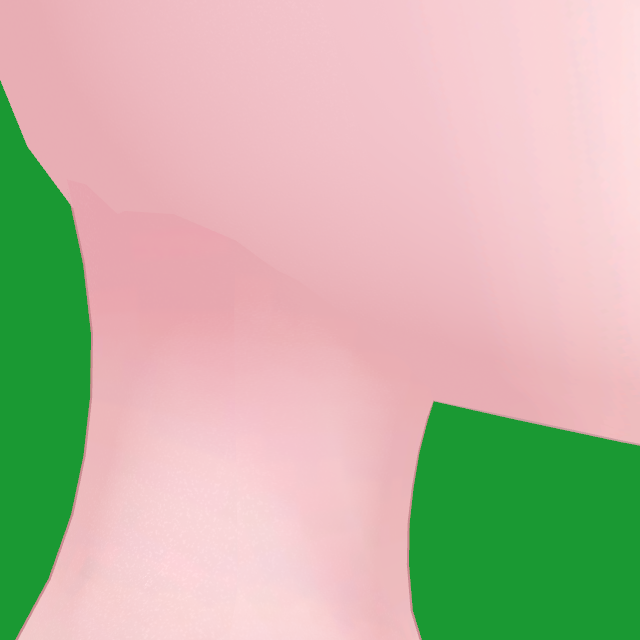
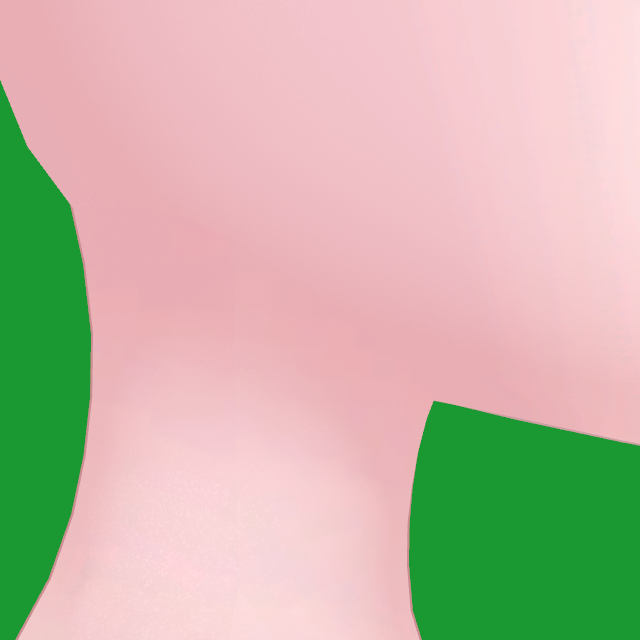 Before修正前
With CON(NECK)TCON(NECK)T 使用後
Before修正前
With CON(NECK)TCON(NECK)T 使用後
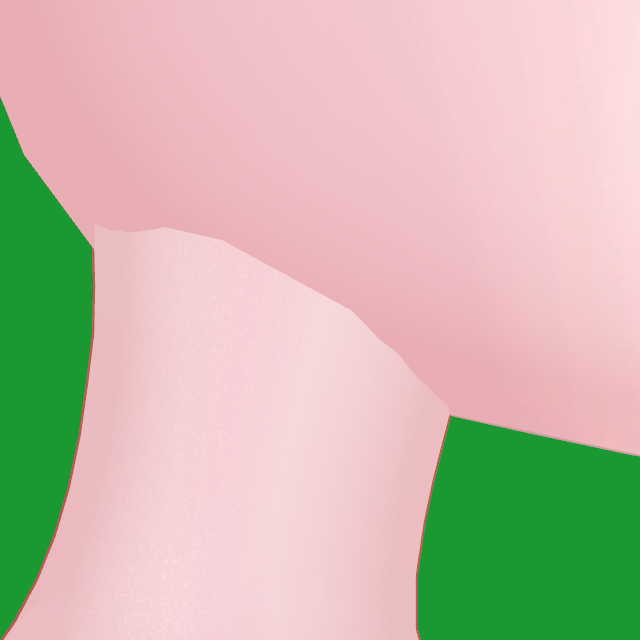
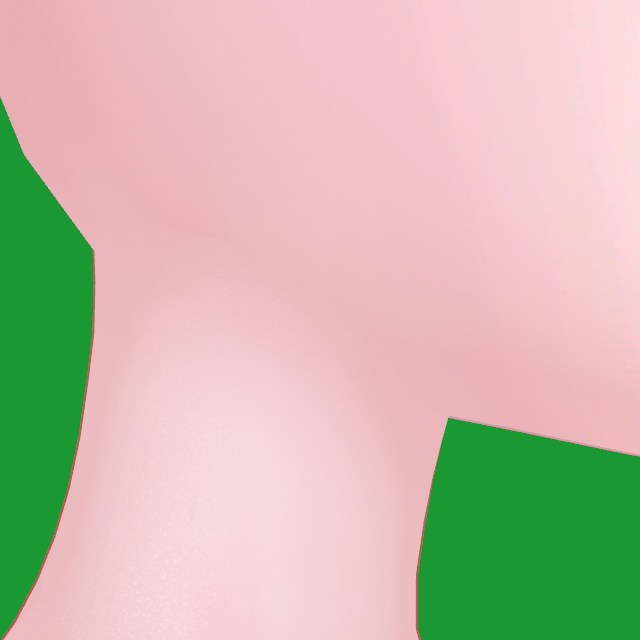 Before修正前
With CON(NECK)TCON(NECK)T 使用後
Before修正前
With CON(NECK)TCON(NECK)T 使用後
Four steps. You don't need to change any settings. 4ステップで完了します。細かい設定を自分で変える必要はありません。
It brings NDMF, which CON(NECK)T needs. CON(NECK)T の動作に必要な NDMF は、Modular Avatar と一緒に入ります。
You get the beta package (a .unitypackage file) from us by DM.
In Unity, choose Assets → Import Package → Custom Package… and pick the file.
ベータ版のパッケージ(.unitypackage)は DM でお送りします。
Unity のメニューから Assets → Import Package → Custom Package… を開き、届いたファイルを選んでインポートしてください。
Updating? Import the new one over the old one. Everything goes into Assets/NeckSeamFixer.
アップデートのときは、新しいパッケージをそのまま上書きでインポートすれば大丈夫です。ファイルはすべて Assets/NeckSeamFixer に入ります。
In the Hierarchy, right-click your avatar → CON(NECK)T → Add CON(NECK)T Neck. A new object named CON(NECK)T Neck appears inside your avatar. ヒエラルキーでアバターを右クリックし、CON(NECK)T → Add CON(NECK)T Neck を選びます。 アバターの中に CON(NECK)T Neck というオブジェクトが追加されます。
Select the CON(NECK)T Neck object. In the Inspector, press ★ Fix automatically. Adding it already did this once. After updating the tool, press it again. CON(NECK)T Neck を選択して、インスペクターの ★ おまかせで修正 を押します。 追加したときに一度自動で実行されていますが、ツールをアップデートしたあとは、もう一度押してください。
The EN / 日本語 switch at the top right of the inspector changes its language. インスペクター右上の EN / 日本語 ボタンで、表示を日本語に切り替えられます。
Look closely at the neck, from every side and in different light. 角度やライトを変えながら、首まわりをじっくり見てみてください。
Switch Preview between On and Off and look at the neck. プレビュー の オン / オフ を切り替えて、修正前と修正後を見比べます。
Press Play (or use Gesture Manager) and turn the head a little (rotate the Head bone). No crack or step should show at the neck. プレイモード(または Gesture Manager)で Head ボーンを少し回し、首を動かしても割れ目や段差が出ないか確認します。
Turn your scene's Directional Light so it shines from above, from the side and from behind. シーンの Directional Light を回して、上・横・後ろから光を当ててみてください。
Stop Play, untick the checkbox next to the component's name, then press Play again. いったんプレイモードを終了して、コンポーネント名の横のチェックを外し、もう一度プレイモードに入ります。
Turning the object off is not enough. Only the component's checkbox turns the fix off. ※オブジェクトを非アクティブにしても、修正は止まりません。必ずコンポーネントのチェックを外してください。
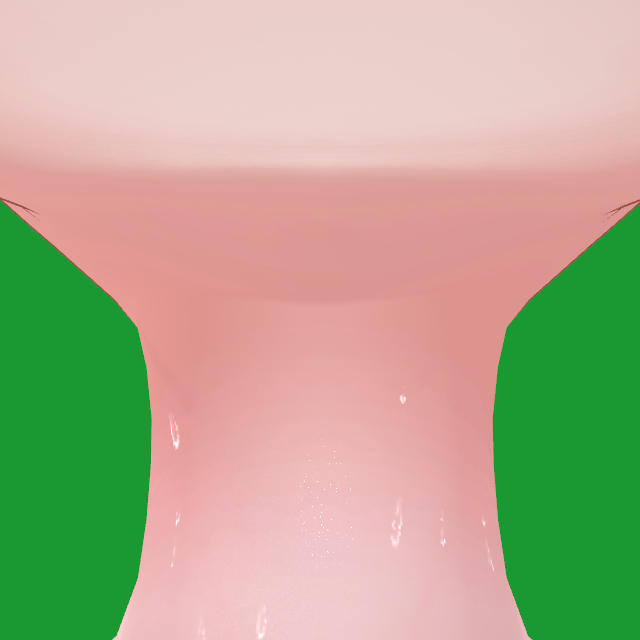
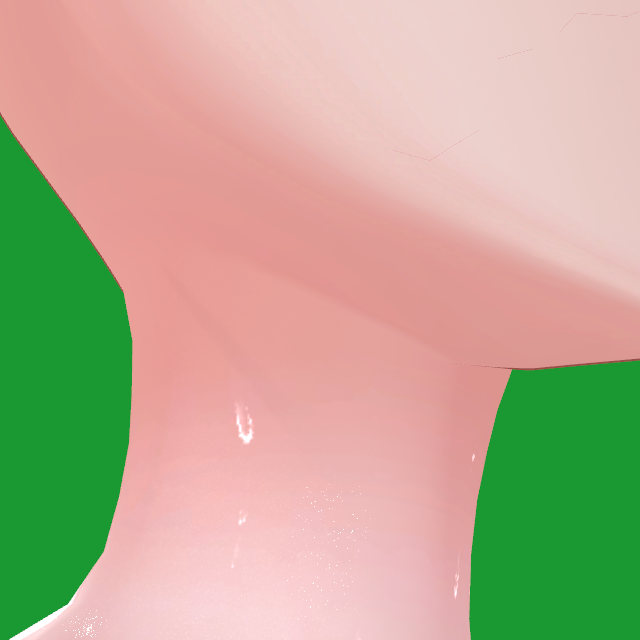
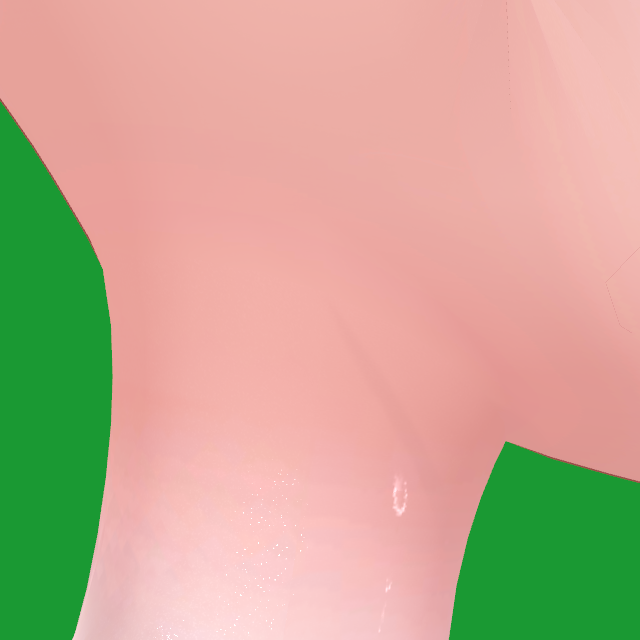
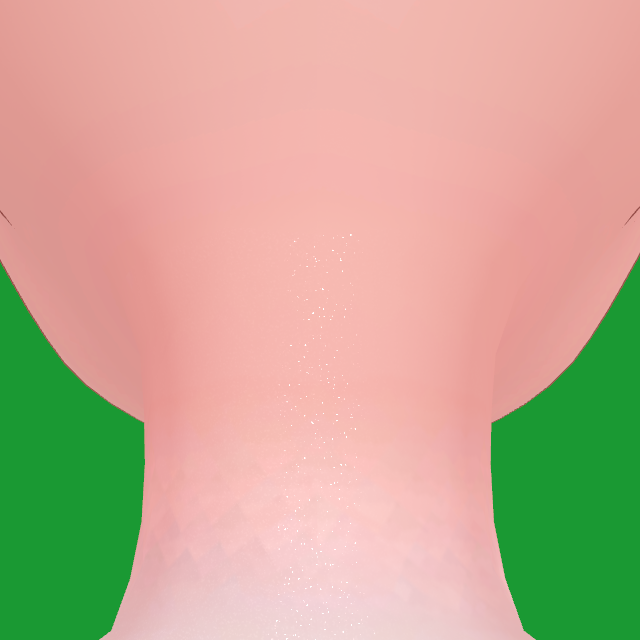
Front, quarter, side and back, and also from below (under the chin). Here is the same fixed neck from each one. 正面・斜め・横・後ろ、それにあごの下(下から見上げる角度)もチェックしてください。下の画像は、修正後の同じ首を各角度から見たものです。
Just tell us what you noticed. Your feedback decides what goes into the release. 気づいたことを、気軽に送ってください。いただいた声をもとに、正式版の内容を決めていきます。
What changed since 0.9.2.0.9.2 からのおもな変更点です。